Instructions for navigating the course site
This book provides Moodle directions for various items in the course.
Health Informatics Online Classroom
How-to
Submit a File for an Assignment
|
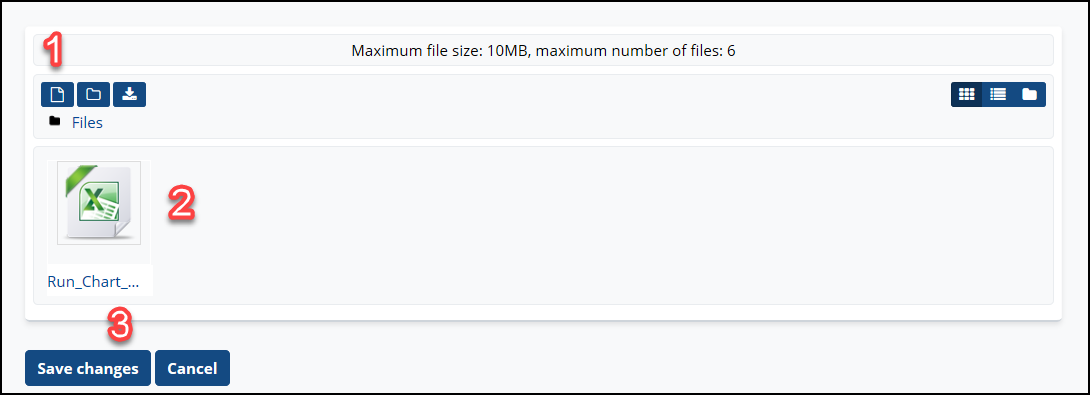
For some assignments, you will need to submit a file for grading. The upload process is basically the same as attaching a file, described earlier, but submitting the assignment for grading requires a few important extra steps. Upload A File to an Assignment A. Navigate to the appropriate assignment |
 |
| C. The File submission window will appear as shown below. |
|
|
Don't stop there! You haven't submitted the assignment yet.
|
|
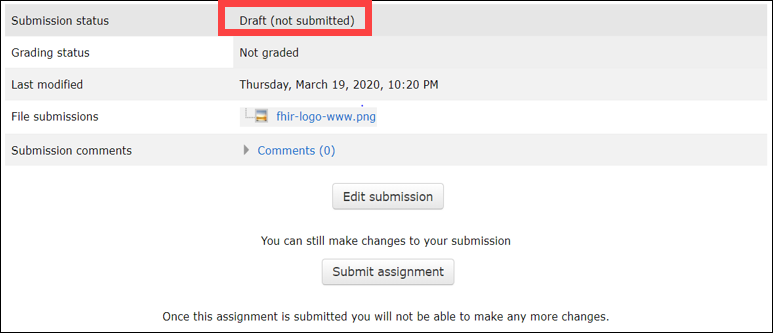
NOTE: Some assignments require additional steps beyond saving changes in order to submit your assignment. In that case, the Submission status reflects “Draft (not submitted).” You can still edit your submission at this point. |
 |
|
When editing is finished and your submission is final, select “Submit assignment.” |
 |
|
You may also be prompted to confirm your submission. Click "Continue." |
 |
|
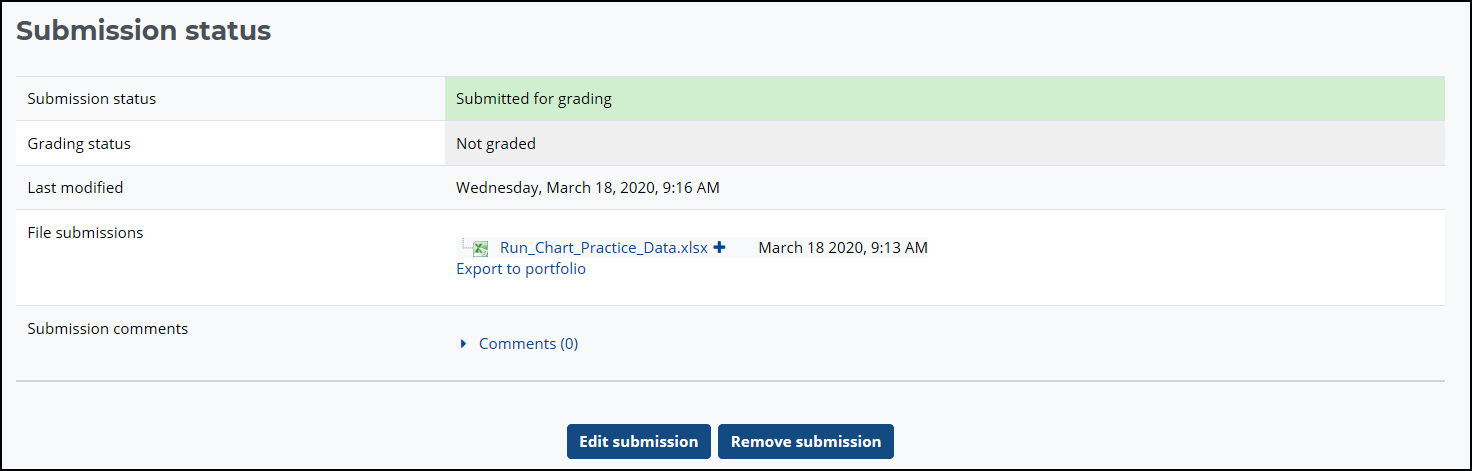
Once your file is submitted, the “Submission Status” window will appear and should reflect “Submitted for grading.” Some assignments do not actually require grading. Credit is given once the assignment is submitted. |
 |