How-to

Edit Your Profile

To get the most out of your virtual classroom experience, you should take some time to get to know your fellow classmates. In addition to introducing yourself and interacting with other students in the discussion forums, your profile is an opportunity to tell your classmates a little about yourself. 

Settings within your profile also give you an opportunity to manage how your e-mail relative to new posts in course discussion forums is handled.

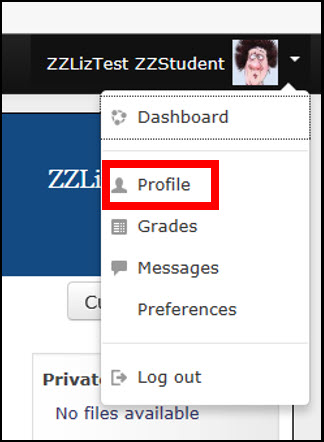
At the top right of the screen, you should see your name (and your picture once you upload one). User Profile
Select the drop down arrow to display a menu and click "Profile". 


Your user profile will be displayed, along with the courses you are enrolled in, login activity and any badges you have earned. 

Click "Edit profile." 

User profile information with "Edit profile" link highlighted

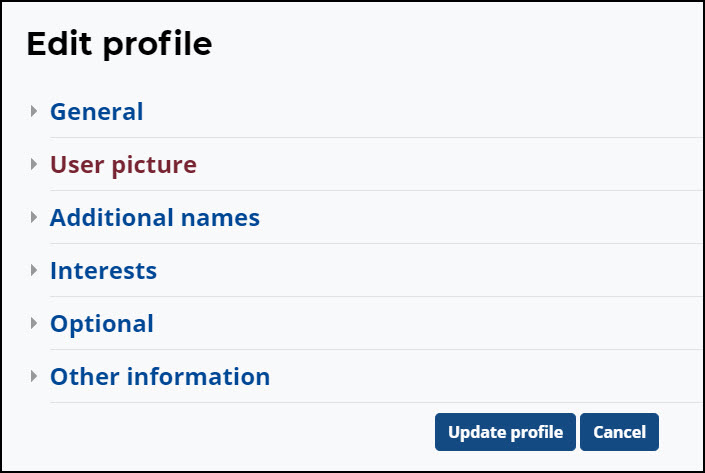
Within the profile, there are several sections you can address.

  • Student profile categories for editing include general, user picture additional names, interests, optional and other informationGeneral:  
    • This section includes demographic information, and provides the option to tell us a little about yourself under the "Description" field.
    • Note that although you can edit the Email address field, the system will require a va.gov e-mail account. If you prefer to use a personal account for course mail, please let the course staff know.
  • User Picture: 
    • Uploading a picture of yourself is especially important in the virtual environment, as it adds a personal touch and it is always helpful to be able to put a face with a name. Additional instructions for uploading files is provided within this book.
  • Interests, Optional and Other Information:
    • The more information that you choose to include in your profile, the better the other participants can get to know you which helps to make connections in a distance learning environment.
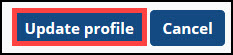
Be sure to select "Update profile" to save your changes before exiting the screen.

Update_Profile